Set custom hours for a venue
Custom Hours let you override a venue's Default Timings for specific dates — a public holiday, a live music night, a one-off early close. On those dates, Tip Sheet calculates tips using the event's service periods and tip earning hours instead of the venue's defaults. Every other day stays untouched.
Custom Hours are set in the admin view, under a venue's settings. The effect shows up in the venue view: days covered by an event are flagged with a custom hours pill on the daily tip sheet, so anyone reviewing tips can see at a glance that different timings applied.
Before you start
- You need permission to edit service periods and tip earning hours for the venue. Without it the calendar is read-only.
- Dates inside a paid tip period are locked. You can open their events to view them, but nothing can be changed — reverse the payment first if you genuinely need to.
Create a custom hours event
1. Open the venue's settings
Go to Venues, open the venue, and select the Venue Settings tab.
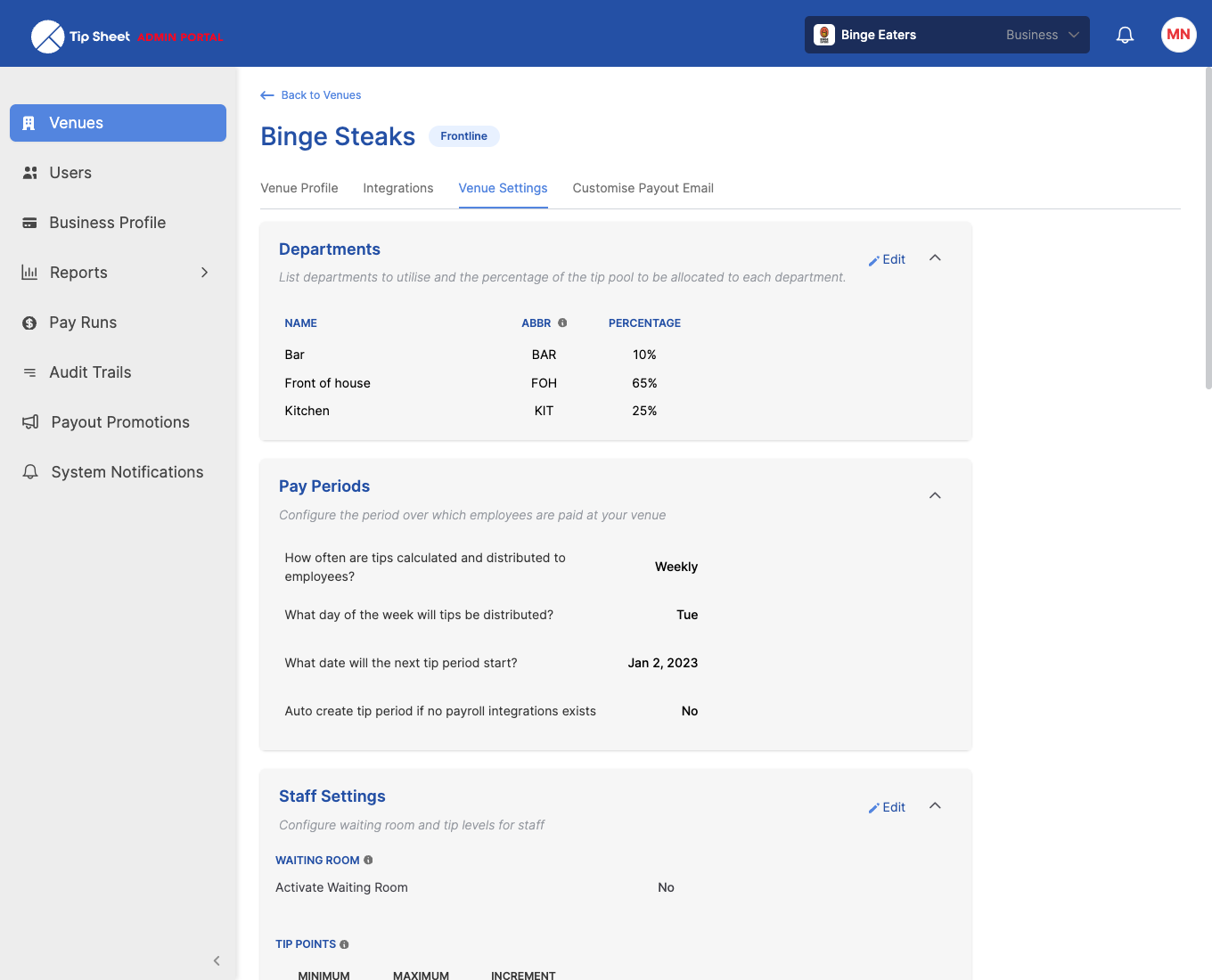
2. Find the Custom Hours calendar
Scroll down to the Custom Hours panel. It shows a month calendar; use the arrows to move between months, or Today to jump back.
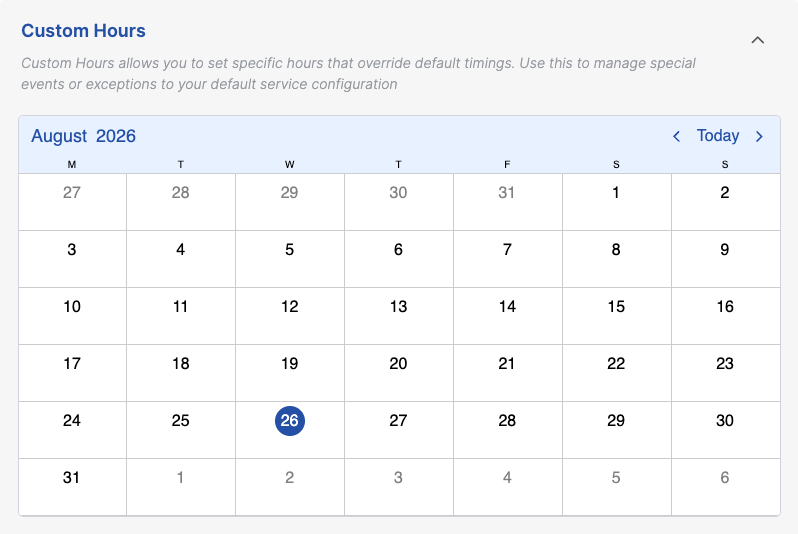
3. Click the date
Click the day you want to override. The Create Event form opens, pre-filled with the venue's current default timings — so you only change what's different about this date.
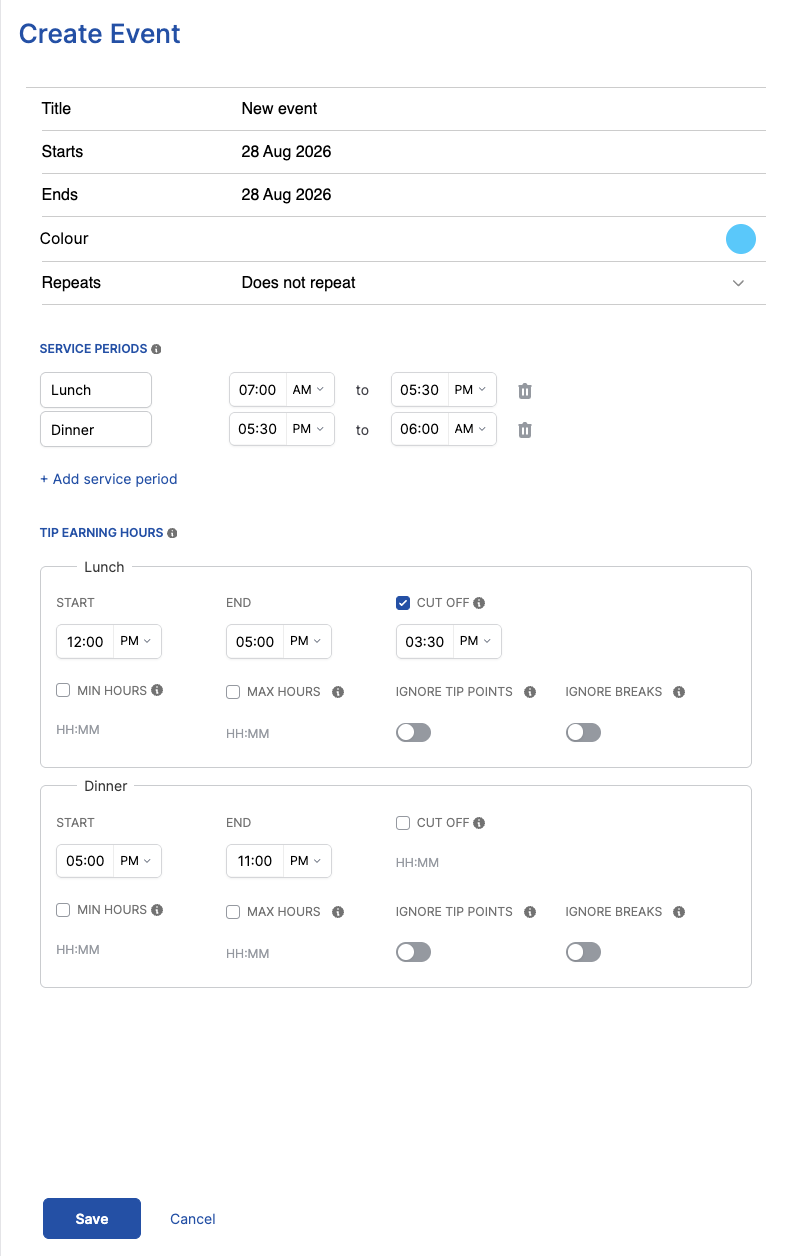
4. Describe the event
- Title — required. This is what appears on the calendar and the tip sheet.
- Starts / Ends — an event can span up to 7 days.
- Colour — how the event is shown on the calendar and the tip sheet pill.
- Repeats — Does not repeat, Weekly, Monthly, or Yearly. Use this for a standing exception, like extended hours every Friday.
5. Adjust the timings
Below the event details, change whatever differs from the defaults on this date:
- Service periods — rename, retime, remove, or add periods for the day.
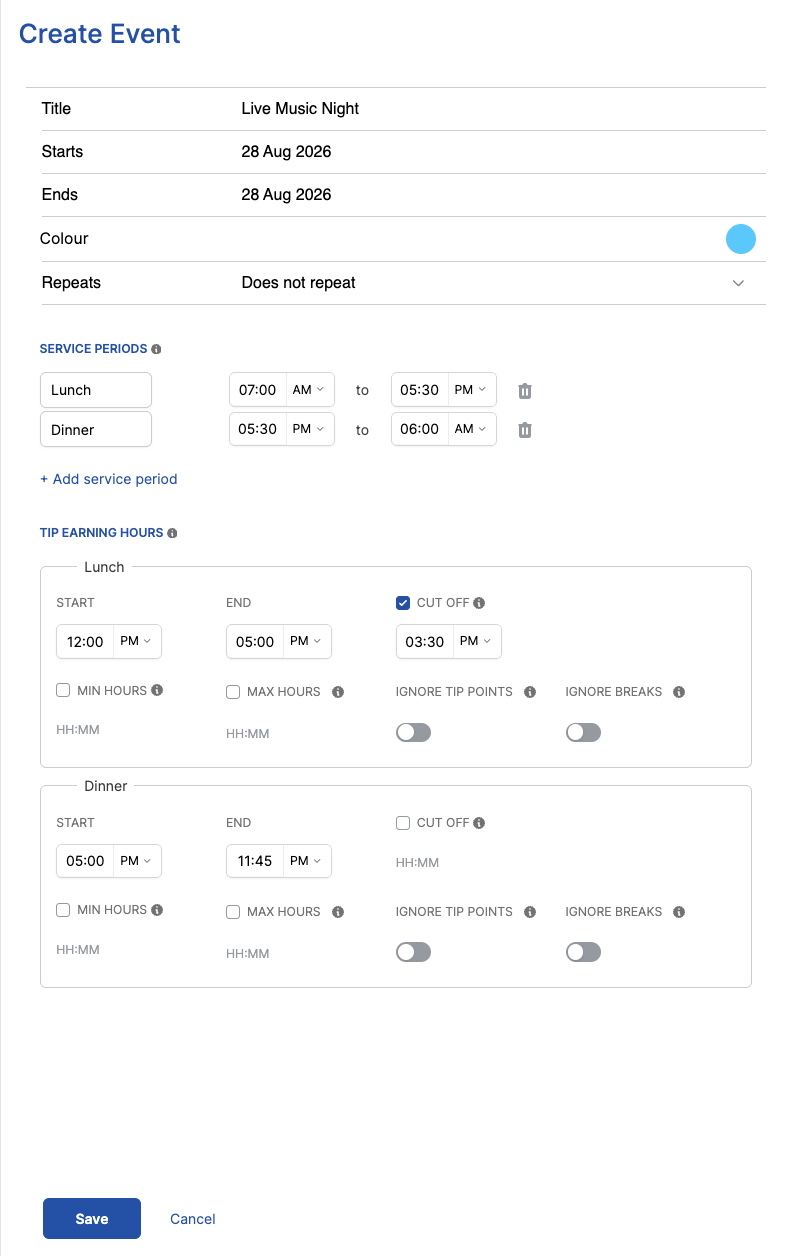
- Tip earning hours — per period: start, end, optional cut-off, minimum/maximum hours, and whether to ignore tip points or breaks.
Here the venue's usual dinner tips end at 11:00 PM, extended to 11:45 PM for a live music night:
6. Save
Select Save. The event appears on the calendar, and tips for that date will be calculated with the event's timings.
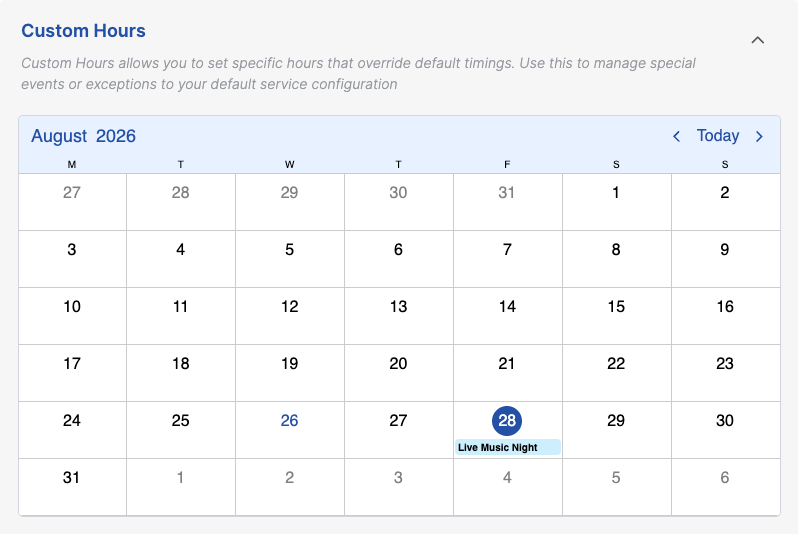
Manage existing events
Click an event to open and edit it. Right-click for quick actions:
- Copy / Paste — duplicate an event's full setup onto another date.
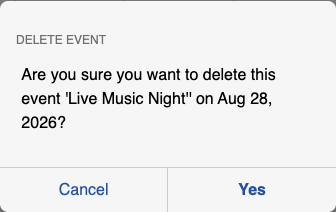
- Delete — remove the event; the date falls back to the venue's default timings.
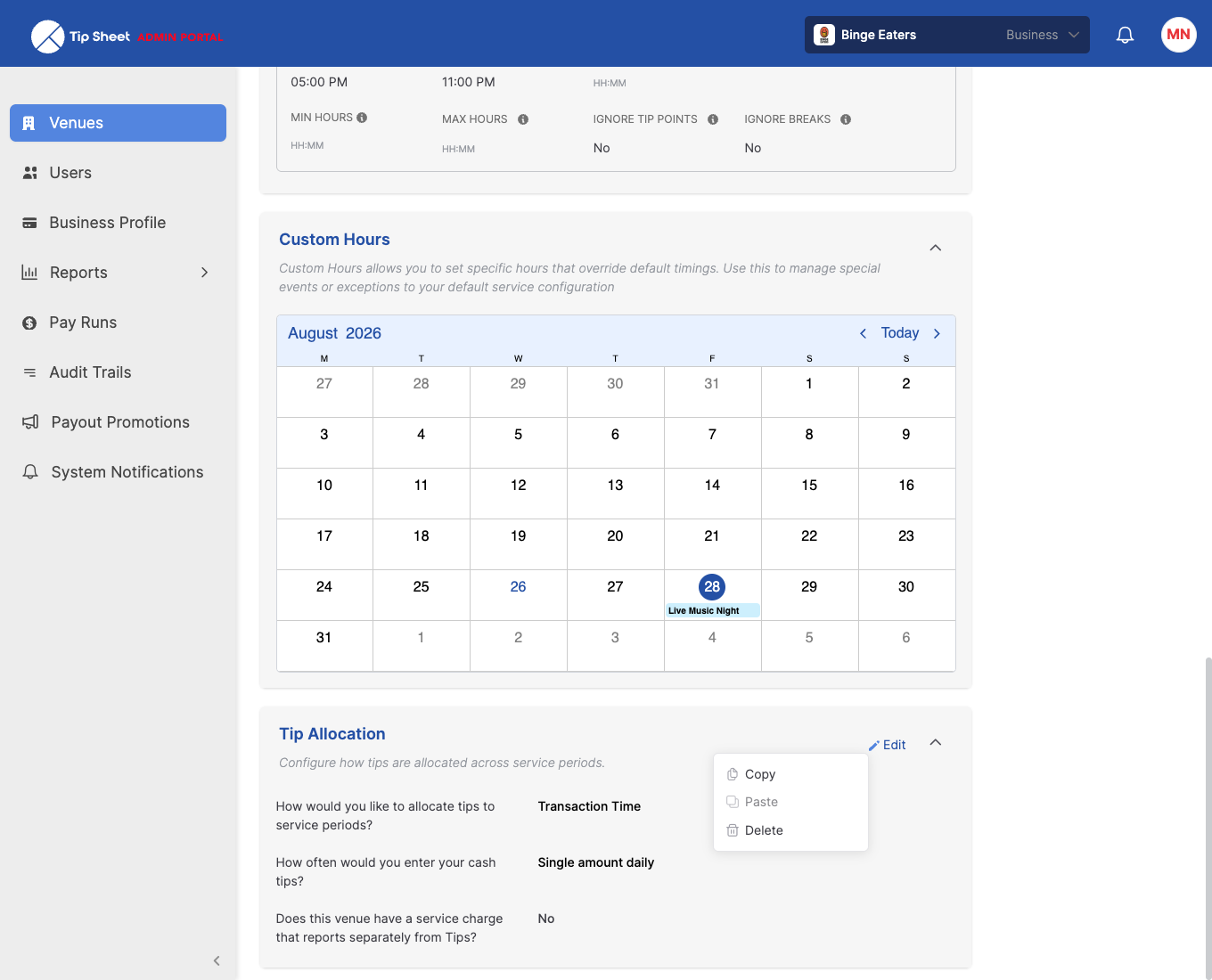
Deleting asks for confirmation first:
When you edit or delete a repeating event, Tip Sheet asks whether the change applies to this event only or this and following events — so you can end or amend a series without rewriting its history.
Rules and limits
| Rule | Detail |
|---|---|
| One event per day | Days can't overlap — copy/paste onto an occupied day is blocked. |
| Maximum length | An event can cover at most 7 days. |
| Title required | Events must be named before saving. |
| Paid periods locked | Events on dates in a paid tip period are view-only. |
| Permission | Managing events requires the service periods & tip earning hours permission. |