Venue and admin views
Tip Sheet has two sides, and most people use both.
The venue view is for running a venue. Checking the tips came in, entering cash, fixing someone's hours, seeing who earned what, approving the week. It shows one venue at a time.
The admin view is for running the business. Adding venues, connecting your POS and timesheet systems, deciding who gets a login, paying everyone. It covers the whole business at once.
Same login, same tips, same staff. Two different jobs.
The product labels them the Venue Portal and the Admin Portal — that is the wording on the button that moves you between them. This guide says "venue view" and "admin view" for short.
The venue view
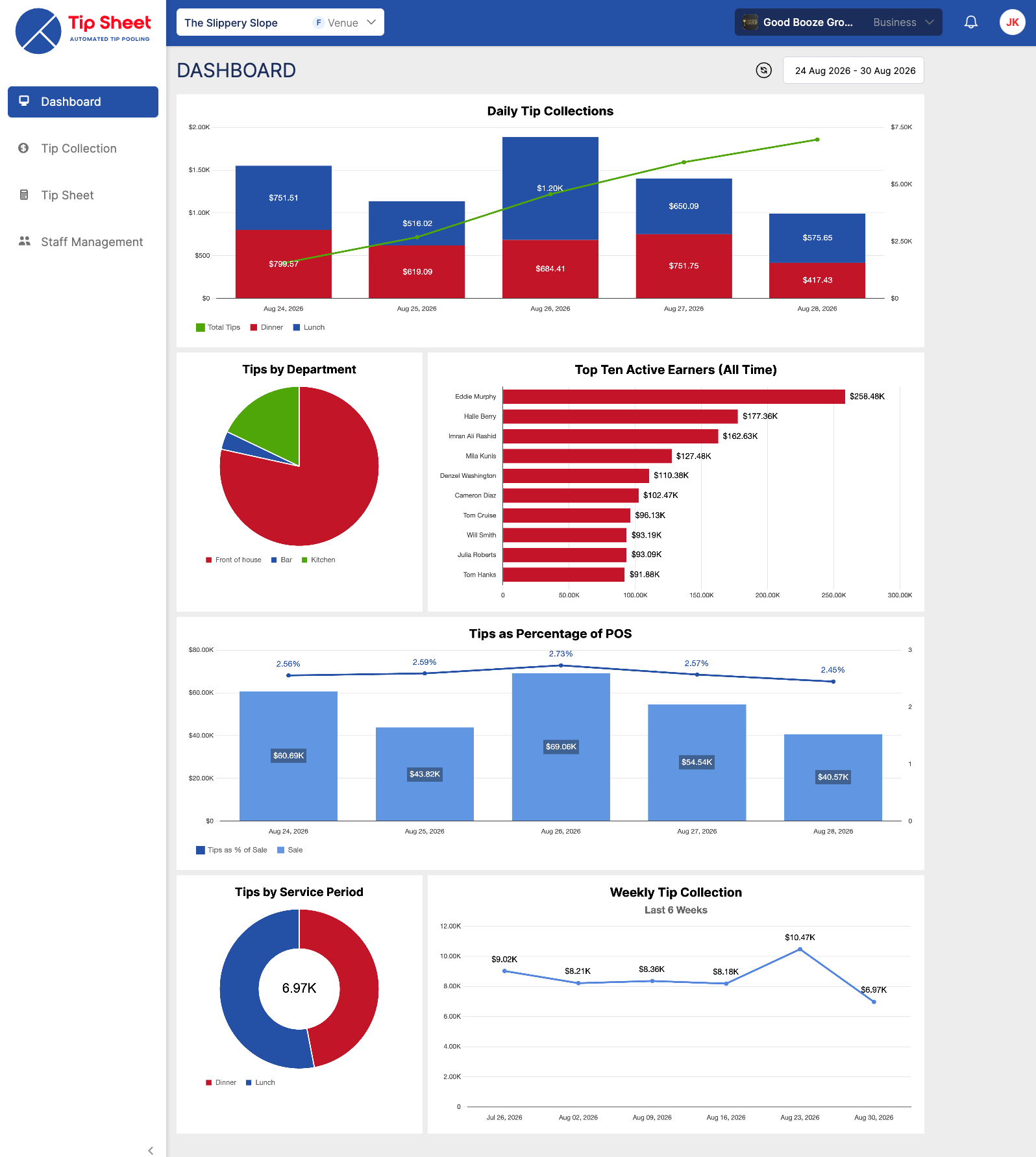
The venue view. The venue's name sits in the top left, and the sections down the side are the day-to-day work.
Two things tell you where you are: the venue name in the top left, and a short list of sections down the left-hand side.
- Frontline venue
- Dependent venue
| Section | What it's for |
|---|---|
| Dashboard | How the venue is tracking — tips by day and by week, split by service period and by department, your top earners, and tips as a percentage of POS sales. |
| Tip Collection | The tips that came in: card tips from your POS, cash you enter yourself, and service charges. Every order, with the service period it landed in. |
| Tip Sheet | Who earned what. Hours, tip points and each person's share, by day or by week. This is where you lock a period and mark it paid. |
| Staff Management | The people who earn tips — their department, tip points and whether you hold their bank details. |
| Section | What it's for |
|---|---|
| Tip Collection | The share of tips this venue has received from the venues it supports. |
| Tip Sheet | Who earned what out of that share. Lock a period and mark it paid here. |
| Staff Management | The people who earn tips — their department, tip points and whether you hold their bank details. |
A dependent venue doesn't take tips at the till — its share comes across from the venues its staff support — so there's no daily collection to chart, and the Dashboard is left out. The other three sections work the same way as anywhere else.
The admin view

The admin view, on the Venues list. Every venue in the business, its type, and the systems it's connected to.
The giveaway here is what's missing: there's no venue name in the top left, because the admin view isn't about one venue. The header carries the business name instead.
| Section | What it's for |
|---|---|
| Venues | Every venue in the business. Add one, open one to set it up, or archive one you've closed. |
| Users | Who can log in to Tip Sheet, and which venues each of them can reach. |
| Business Profile | The business's own details and its subscription. |
| Reports | Figures across all your venues at once, rather than one at a time. |
| Pay Runs | Group approved periods from several venues into a single payment, and produce one bank file for the lot. |
| Audit Trails | Who changed what, and when. |
Each of these sections is controlled separately. If your account isn't allowed to see pay runs, for instance, Pay Runs simply isn't there — see Roles and permissions.
Which view do I need?
Most questions come down to one thing: is this about tonight, or about the setup? Day-to-day work is in the venue view. Anything you configure once and forget is in the admin view.
| I want to… | Go to |
|---|---|
| Check last night's tips came in | Venue view → Tip Collection |
| Enter cash tips | Venue view → Tip Collection |
| Move a tip into a different service period | Venue view → Tip Collection |
| See who earned what for a day or a week | Venue view → Tip Sheet |
| Correct someone's hours or tip points | Venue view → Tip Sheet |
| Lock a week and mark it paid | Venue view → Tip Sheet |
| Add someone who earns tips, or change their department | Venue view → Staff Management |
| Collect a staff member's bank details | Venue view → Staff Management |
| Add a new venue | Admin view → Venues |
| Connect a POS or timesheet system | Admin view → Venues → the venue → Integrations |
| Change service periods or tip earning hours | Admin view → Venues → the venue → Venue Settings |
| Give someone a Tip Sheet login | Admin view → Users |
| Pay several venues in one go | Admin view → Pay Runs |
| Find out who changed something | Admin view → Audit Trails |
This catches people out. Staff are the people who earn tips — they live in the venue view, under Staff Management, and most of them never log in to anything. Users are the people who use Tip Sheet — they live in the admin view, under Users, and each one has an email address and a password.
Adding a chef to Staff Management doesn't give them a login. Inviting a manager under Users doesn't put them on the tip sheet.
Where a venue is set up
A venue is configured in the admin view, and the effect is felt in the venue view.
Open Venues, choose a venue, and you get its own set of tabs:

Opening a venue in the admin view. Its type — Frontline here — sits next to the name.
- Venue Profile — name, address, timezone and the bank details tips are paid from.
- Integrations — connect the POS and timesheet system for this venue.
- Venue Settings — departments, service periods, tip earning hours, pay period, tip points and custom hours.
- Customise Payout Email — what your staff receive when they're paid.
Change a service period here, and tomorrow's tip sheet in the venue view is calculated against it. That's the pattern throughout Tip Sheet: set it once in the admin view, use it every day in the venue view.
Moving between the two views
Select your initials in the top right, then Switch to Admin Portal. Coming back, the same menu says Switch to Venue Portal.
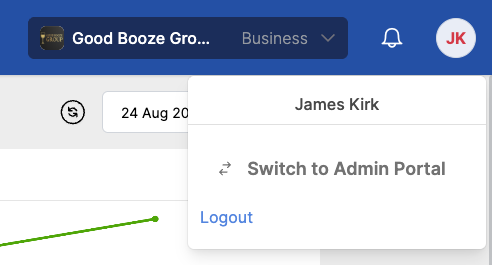
Your initials, top right, open the menu that moves you between the two views.
If you don't see that option at all, your account doesn't have admin access — which is normal for supervisors and many venue managers. Ask whoever set up your business to give you access, or work with what the venue view gives you.
Changing which venue you're looking at
In the venue view, the venue name in the top left is a picker. Select it, and you can search the list and switch to any venue you're allowed to see.
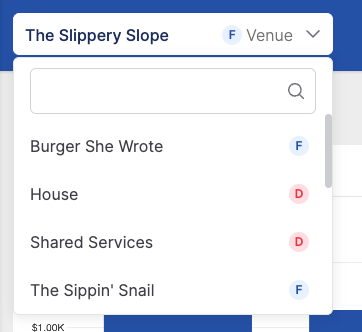
The venue picker. The letter beside each venue is its type.
Each venue is tagged with a letter:
| Tag | Means | In practice |
|---|---|---|
| F | Frontline | Takes tips directly from customers, through its own POS. |
| D | Dependent | Doesn't take tips itself. It receives a share from the frontline venues its staff support — a central kitchen, or a shared services team. |
Most venues are frontline. You only need a dependent venue when people who don't work a till still deserve a share of the tips. Choosing between them is covered in Create a venue.
If you look after more than one business, there's a second picker beside the venue one. In the admin view it's the only picker on screen — there's no single venue to choose.
Why your screen might not match a colleague's
Two people can open the same venue and see different things. That's deliberate — access is set per person, and per venue. A supervisor might enter cash tips but not see anyone's bank details. A manager might approve a week at one venue and only look at another.
If something described in these guides isn't on your screen, it's almost always a permission rather than a fault. Roles and permissions explains who can do what, and how to change it.
Where to next
- Create a venue — set one up from scratch.
- Connect your systems — get tips and hours flowing in.
- Roles and permissions — decide who sees what.