Custom permissions for one person
Sometimes a role is nearly right. Your assistant manager at one venue should do everything a Manager does, except unlock a period that's already been approved. Rather than inventing a role for one person, you can adjust their permissions at that venue alone.
Nobody else is affected, at that venue or any other.
Adjust someone's permissions
In the admin view, choose Users, expand the person's row and choose Edit — the same starting point as choosing their venues and roles.
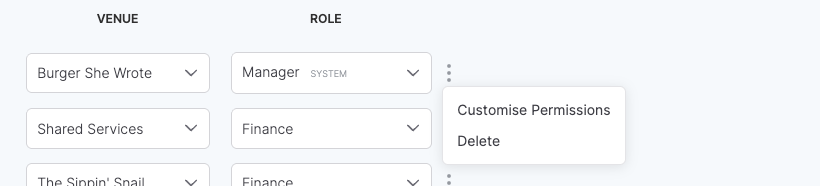
Find the venue you want to change, open the menu at the end of its row, and choose Customise Permissions.
The panel opens with the role's permissions already ticked, so you're adjusting rather than starting over. Tick and untick whatever you need.
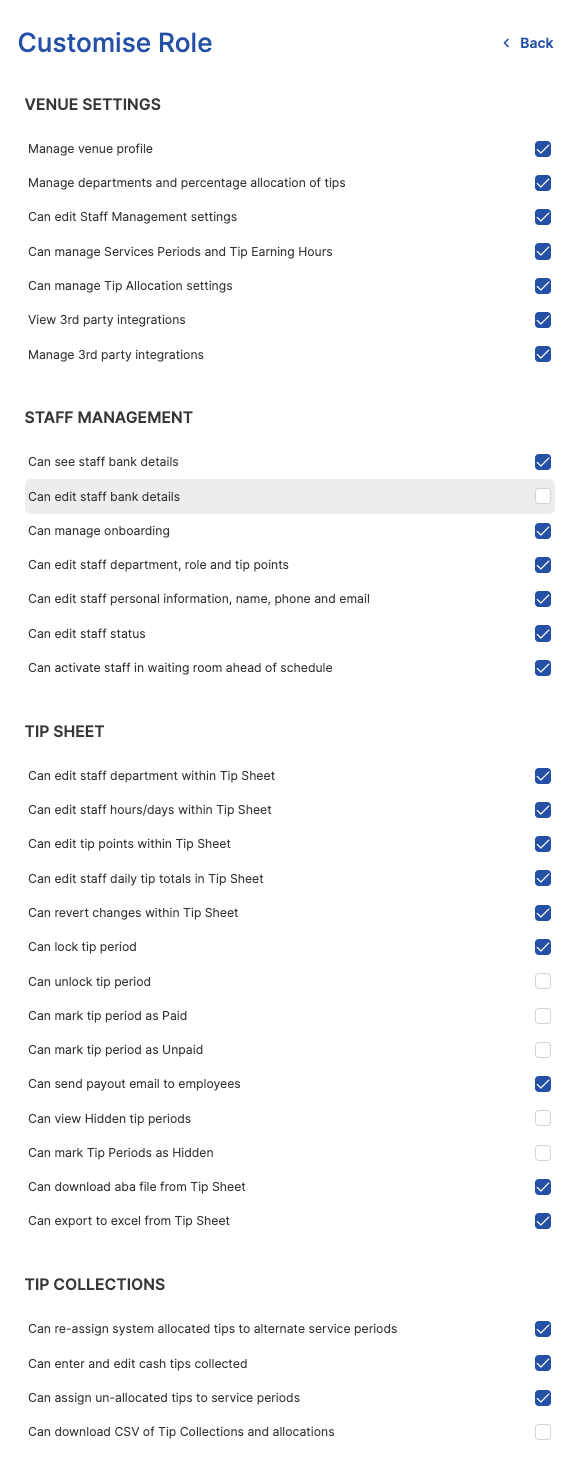
Here a Manager has had "Can edit staff bank details" and "Can unlock tip period" taken away.
Choose Back, then Save on the venue list. Nothing is stored until you save — leaving with Cancel discards the changes.
You won't see the same permissions at every venue. Can add staff for dependent venue only appears on a dependent venue that has no timesheet system connected, because there's nowhere else it could apply.
What "CUSTOMISED" means
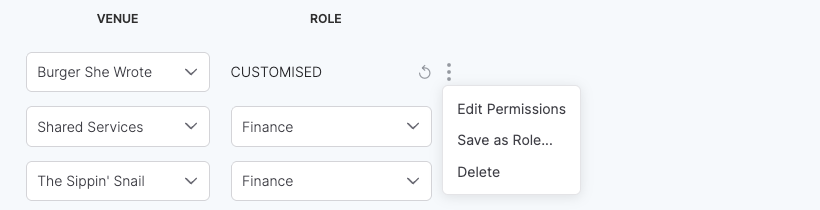
Once you've changed anything, the role name is replaced by CUSTOMISED.
 Puts it back
The row shows CUSTOMISED, and the menu now offers Edit Permissions and Save as Role.
That row is no longer connected to the role it came from. If you later change the Manager role, this person won't pick up the change at this venue — they have their own set now. That's the trade-off, and it's the reason to keep customised rows rare.
The menu changes to match:
| Option | What it does |
|---|---|
| Edit Permissions | Reopens the tick list to adjust it further. |
| Save as Role... | Turns this exact set into a reusable role. |
| Delete | Removes the person's access to this venue entirely. |
Putting it back
The small ↺ beside CUSTOMISED clears the custom permissions and returns the row to a role. Use it when a one-off has outlived its purpose, or when you'd rather move the person onto a proper role.
Turn a customised set into a role
If the adjustment you made would suit other people too, don't repeat it by hand. From the customised row's menu, choose Save as Role....
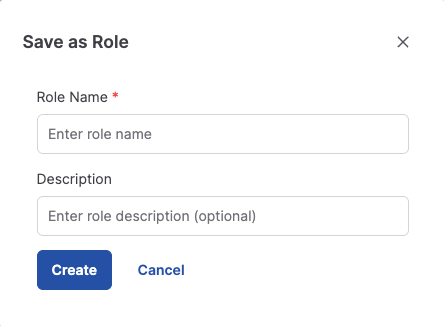
Give it a name and an optional description, then choose Create. The new role appears on the Roles tab with exactly the permissions that person had, ready to hand to anyone else.
If you've customised half a dozen people the same way, build the role once with Save as Role, then switch each of them onto it. After that a single edit to the role updates everyone — which is exactly what customised rows can't do.
The person you built it from is moved onto the new role straight away — their row stops saying CUSTOMISED and shows the role's name instead. As always, it isn't stored until you choose Save on the venue list.