Roles
A role is a named set of venue permissions you can hand to as many people as you like. Change the role later and everyone holding it changes with it — which is the whole reason to use one.
Find them in the admin view: choose Users from the menu on the left, then the Roles tab.
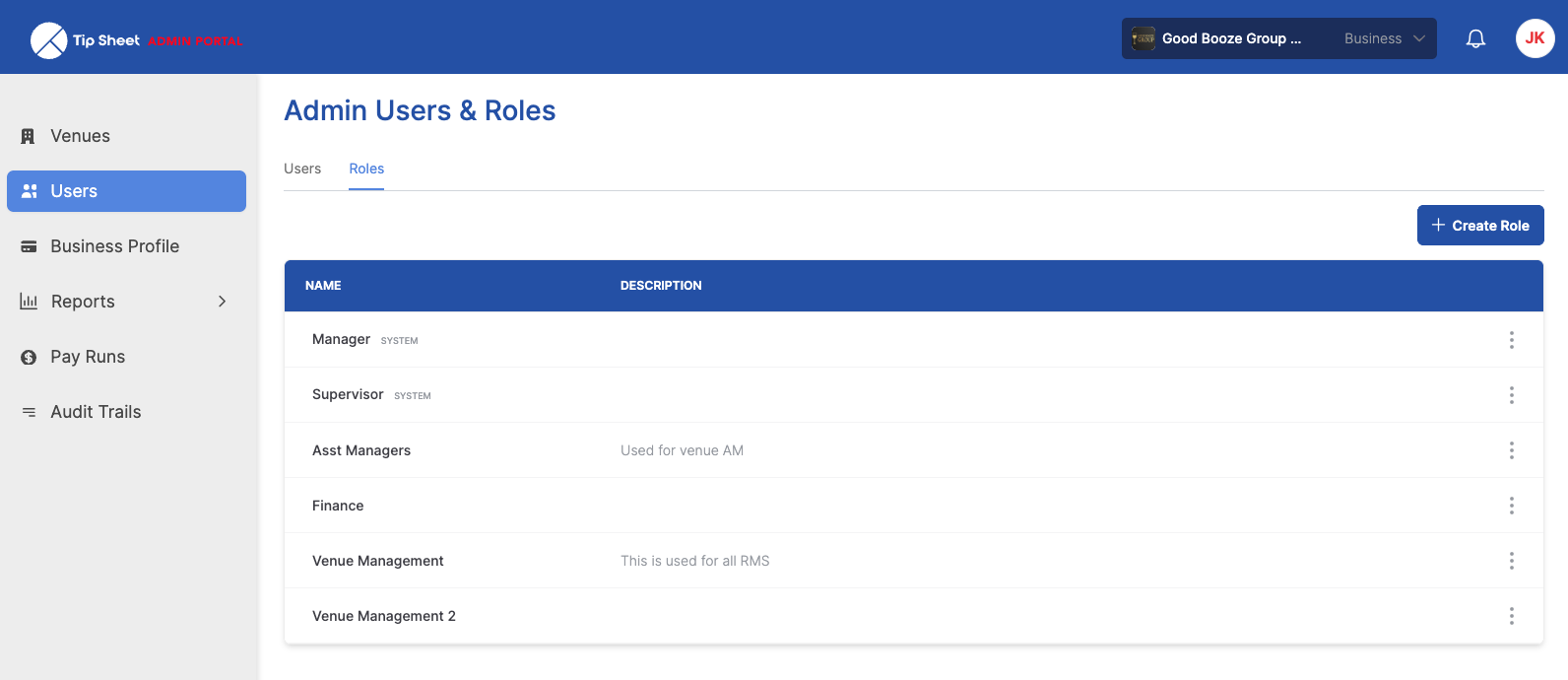 1. The Roles tab2. Build a new one
Manager and Supervisor come with Tip Sheet and are marked SYSTEM. Everything below them was created by this business.
A role never includes back-office access. See Give someone access for that.
The two built-in roles
Manager is for someone who runs a venue day to day. It grants nearly everything at that venue: the settings, the staff, the tip sheet and the tip collections.
Supervisor is deliberately narrow — a shift leader who helps with the daily numbers but has no say over how the venue is configured.
Here's Supervisor in full. Seven permissions, and nothing else:
| Supervisor can | |
|---|---|
| See staff bank details | (see, not change) |
| Edit staff department, role and tip points | |
| Edit staff personal information | name, phone, email |
| Edit staff status | |
| Lock a tip period | but not unlock it |
| Enter and edit cash tips | |
| Assign un-allocated tips to service periods |
Manager is easier to describe by what it leaves out. It includes every venue permission except these six:
| Manager cannot | Why it matters |
|---|---|
| Mark a tip period as Paid | Confirming money has gone out stays with the back office |
| Mark a tip period as Unpaid | As above, in reverse |
| View hidden tip periods | |
| Mark tip periods as hidden | |
| Download the CSV of tip collections | They can still export the tip sheet itself |
| Add staff to a dependent venue | Only relevant at dependent venues anyway |
Note what Manager does include: unlocking a period, editing everyone's hours and tip totals, seeing and editing bank details, and downloading the bank file. It is a lot of trust. If that's more than you want to hand over, copy it and cut it down.
Manager and Supervisor have no Edit or Delete on their menu — only View and Make a Copy. They're the same in every business, so nobody can quietly redefine what "Manager" means.

See exactly what a role includes
Choose View on any role. The panel lists every permission, grouped the way the product is laid out, with ticks for what's granted.
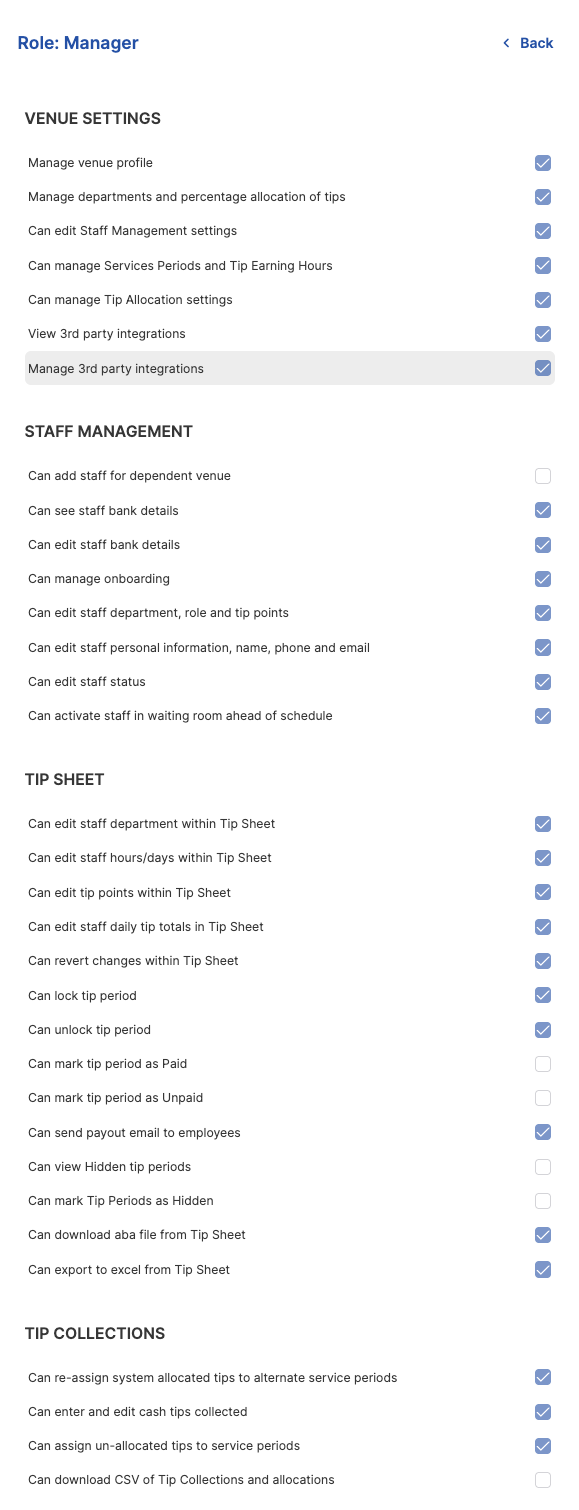
The Manager role in full. This is the quickest way to answer "what would this person be able to do?"
What each permission controls explains any line you're unsure about.
Build a role of your own
Your own roles have the full menu: View, Edit, Make a Copy and Delete.

Start from an existing role
Usually the fastest route. Choose Make a Copy on the role that's closest to what you want — including Manager or Supervisor.
The copy appears immediately, named Copy of <role>, with the same permissions. There's no naming prompt, so open Edit afterwards to rename it and adjust the ticks.
Start from nothing
Choose Create Role, give it a name and an optional description, and choose Create.
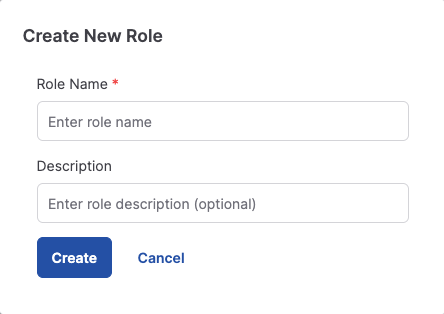
Creating a role only names it. Someone given it straight away could reach the venue and do nothing. Open the role's menu, choose Edit, tick what it should allow, and choose Update.
This is why Make a Copy is usually the better starting point.
Editing and deleting
Edit opens the same permission list, this time with the ticks live, plus the name and description. Choose Update to save.
Changing a role changes it for everyone already on it, at every venue, straight away. Before you untick something, it's worth looking at who holds the role — the Users tab shows each person's role per venue.
Delete asks you to confirm — but a role that's still assigned to someone won't go. Tip Sheet refuses it and tells you how many people are on it: "Cannot delete role. It is assigned to 3 user(s)." Move those people onto another role first, then delete.
That's a deliberate safety net: nobody loses access overnight because a role was tidied away.